
Progress indication
The progress ring is Media Sync Tool’s main status indicator: at a glance it tells you whether the app is waiting for media, actively syncing, finished, or has run into errors.
The progress ring
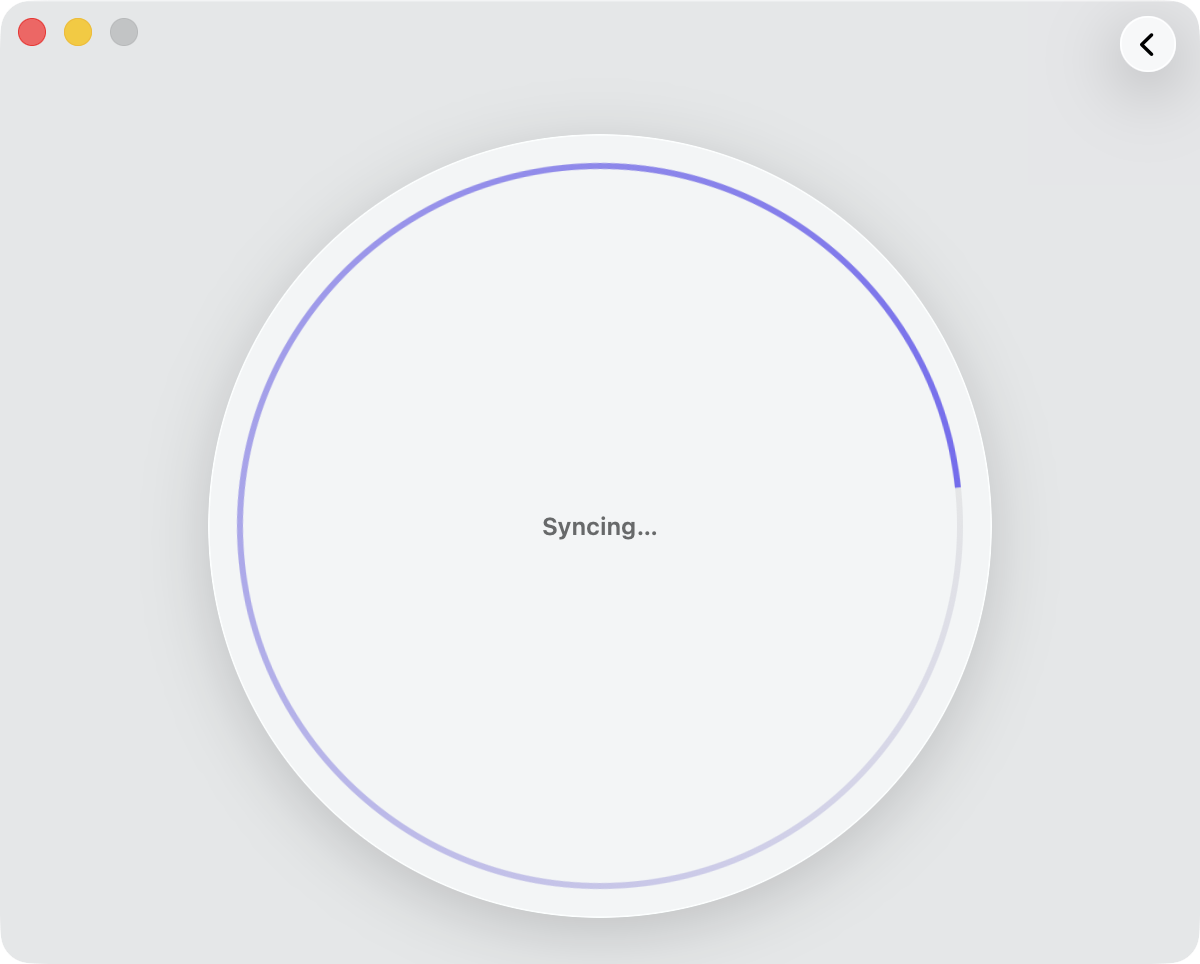
While a sync runs, Media Sync Tool shows a ring with a rotating arc and a short label in its centre. The motion is indeterminate—it signals that the app is working, not a precise percentage. When the sync finishes, the ring settles into a full circle and the app presents the sync results. If something goes wrong, the ring turns red and shows the error instead.
What the ring shows
- Waiting for media
- When you drag media straight from Final Cut Pro, it takes a moment for Final Cut Pro to generate the FCPXML and hand it over. During this wait the ring shows a short rotating arc and the label Waiting for media… If you cancel the export in Final Cut Pro, Media Sync Tool notices on its own and returns to the drop zone—there’s nothing to dismiss or undo.
- Syncing
- Once the FCPXML arrives, the engine parses it, pairs audio with video, builds the synchronized and multicam clips, and writes the result. Throughout, the ring shows a full rotating arc and the label Syncing… — usually quick, even for a large number of clips. (For the steps the engine works through, see the sync workflow.)
- Completed
- When the sync completes, the ring becomes a full, static circle and the results appear, with options to send the clips to Final Cut Pro or export an FCPXML.
- Warning
- Sometimes the sync completes but something is worth a look. The ring still reports the Completed status, but a yellow warning symbol takes the place of the usual checkmark—click it to read what happened. See when some clips don’t sync for the warnings a sync can raise, and Clip Logging for the No Clips Logged warning.
- Error
- If something stops the sync from completing, the ring turns red and Media Sync Tool shows what went wrong and how to resolve it. See Dealing with errors.
Note: Only a problem with the FCPXML itself—an unsupported version, or malformed or missing data—stops the process with an error. A problem with a clip’s own metadata never does: clips with unreadable timecode or dates aren’t errors; they’re routed silently to the No Timecode or Not Synced collections instead. See FCPXML errors.