Sync workflow
Media Sync Tool takes an FCPXML file from Final Cut Pro, matches each camera clip with its separately-recorded audio, and writes the synced result back as an FCPXML event you can import.
Getting your media into the app
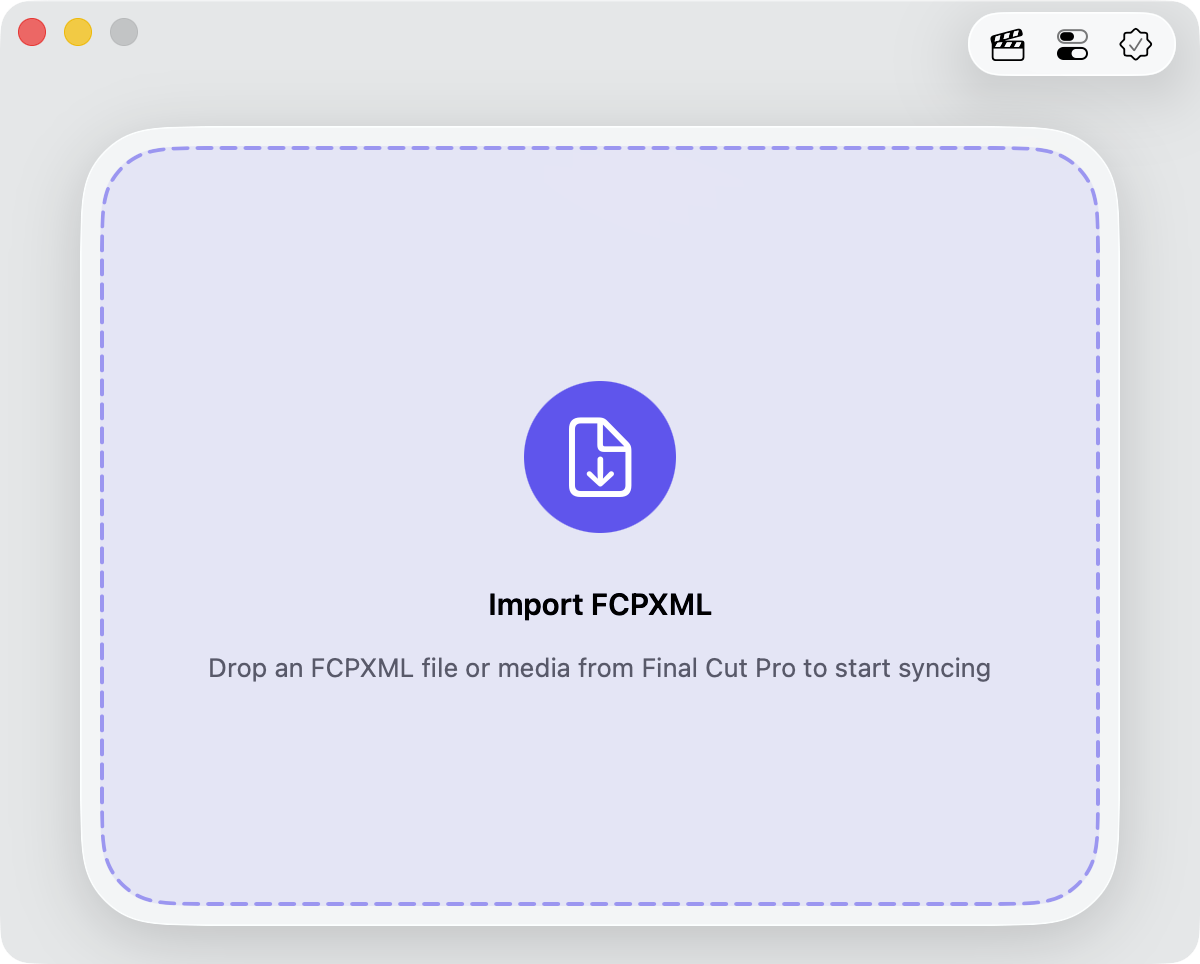
Media Sync Tool works from an FCPXML file, so you start in Final Cut Pro. Import your camera and audio media into Final Cut Pro, then hand it to Media Sync Tool in one of two ways:
- Export an FCPXML file. Select your clips or events in Final Cut Pro and choose File > Export XML. Then drag the resulting
.fcpxmlfile onto the Media Sync Tool window, or open it with File > Open (⌘O). - Drag straight from Final Cut Pro. Drag a library, an event, or individual clips onto the Media Sync Tool window or its Final Cut Pro share extension. Final Cut Pro generates the FCPXML for you and sends it to the app.
Note: Media Sync Tool reads FCPXML from version 1.7 up to (but not including) 2.0. A normal export from a current Final Cut Pro release falls inside that range; schemas older than 1.7, or FCPXML 2.0 or newer, are rejected. See system requirements.
What happens during a sync
Once the app has your FCPXML, it works through the sync in four steps:
| Step | What it does |
|---|---|
| Loading media | Parses the FCPXML file and loads the media it references. |
| Analyzing media | Filters out clips with no timecode, then pairs video with audio by timecode within each shooting day. See Importance of metadata. |
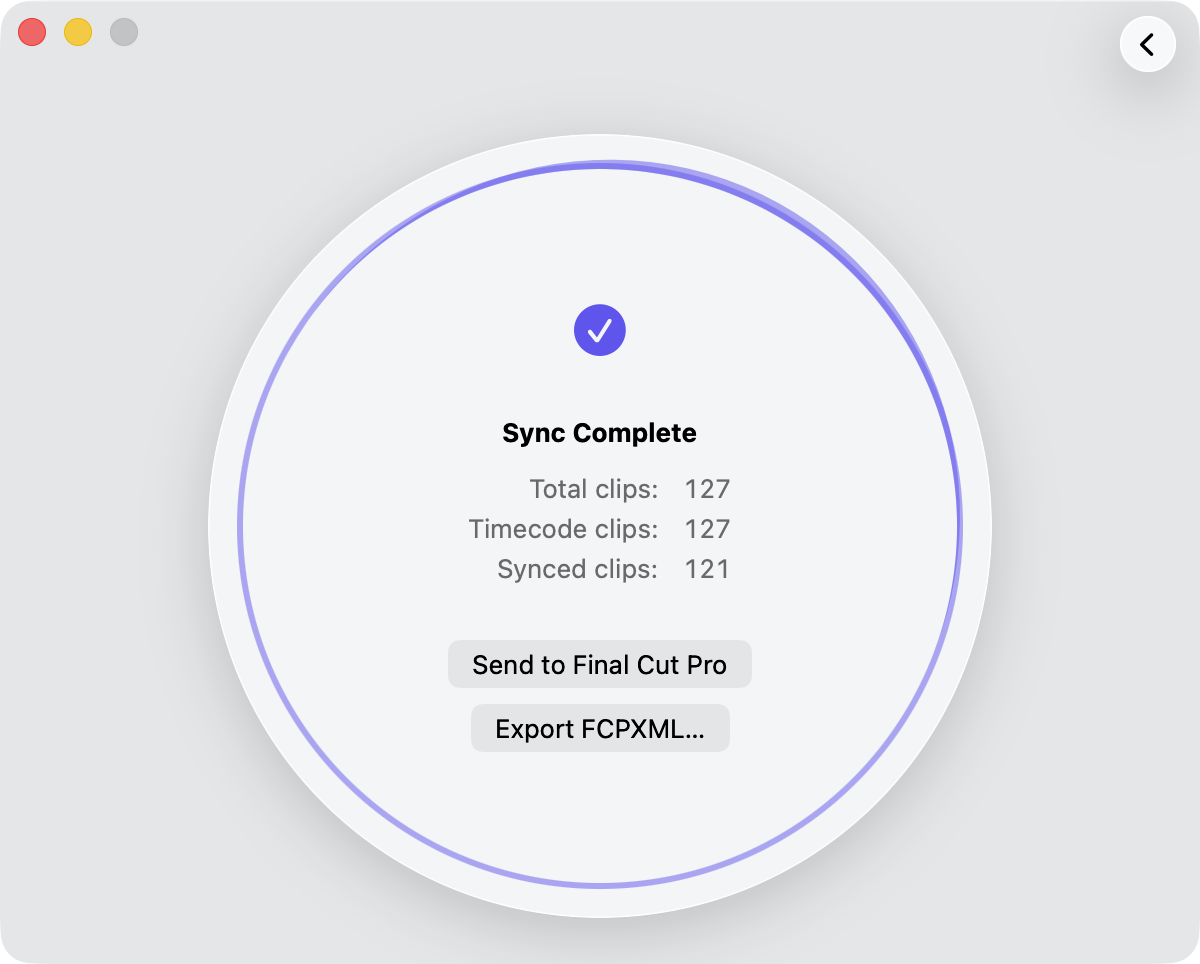
| Syncing media | Aligns each matched pair, builds the synced and multicam clips, and applies sync metadata and keywords. |
| Generating FCPXML | Writes the synced result to a new FCPXML file ready to import into Final Cut Pro. |
How clips are grouped
Before matching, Media Sync Tool sorts your clips by shooting day on its own—from each file’s folder and its recorded creation date—then pairs picture with sound by timecode within each day. You don’t tag anything: unlike version 1, it no longer relies on keywords to decide which clips belong together. Grouping by day also handles 24-hour timecode automatically—when a multi-day shoot reuses the same timecode values each day, Media Sync Tool keeps each day’s clips apart instead of mismatching them. Because all of this is automatic, there’s no limit on how many shooting days you sync at once: drop a whole production and it’s matched in seconds, overlapping timecode and all.
How clips are trimmed
During the syncing stage, the app aligns each clip with its audio and decides how to handle the parts that don’t overlap:
- Standalone synchronized clips are trimmed clean. The synced audio is trimmed to the video’s range, so the clip lines up for its whole length with no rejected sections. If the audio is much shorter than its video, the video is never shortened to match—you keep the full picture.
- Multicam clips mark uncovered angle ranges. Because a multicam clip spans all of its angles, any angle that doesn’t cover the full timeline has its uncovered portions marked as rejected. This applies to multicam only. See Rejecting non-common ranges.
The app also sets the appropriate metadata on the synced clips and adds the necessary sync keywords to the events.
The synced event
The generated FCPXML contains events with your synced clips. Each event keeps its original name with a Synced suffix added. If the source FCPXML had no events, Media Sync Tool places the results in an event named Synced Media.
If you sync together with a continuity report, the naming reflects both steps: the source event becomes <name> Logged and the synced event becomes <name> Logged & Synced. See Clip Logging.
Tip: Import the generated FCPXML back into Final Cut Pro to bring the synced and multicam clips—and their metadata—into your library.