Configure sync settings
Every production works a little differently. Media Sync Tool’s settings let you tune how multicam clips are built, what happens when you log a continuity report, how synced clips inherit metadata, and how the results land in Final Cut Pro.
Open settings from the Media Sync Tool menu, or press Cmd+,. The settings window is a single grouped form with four sections.
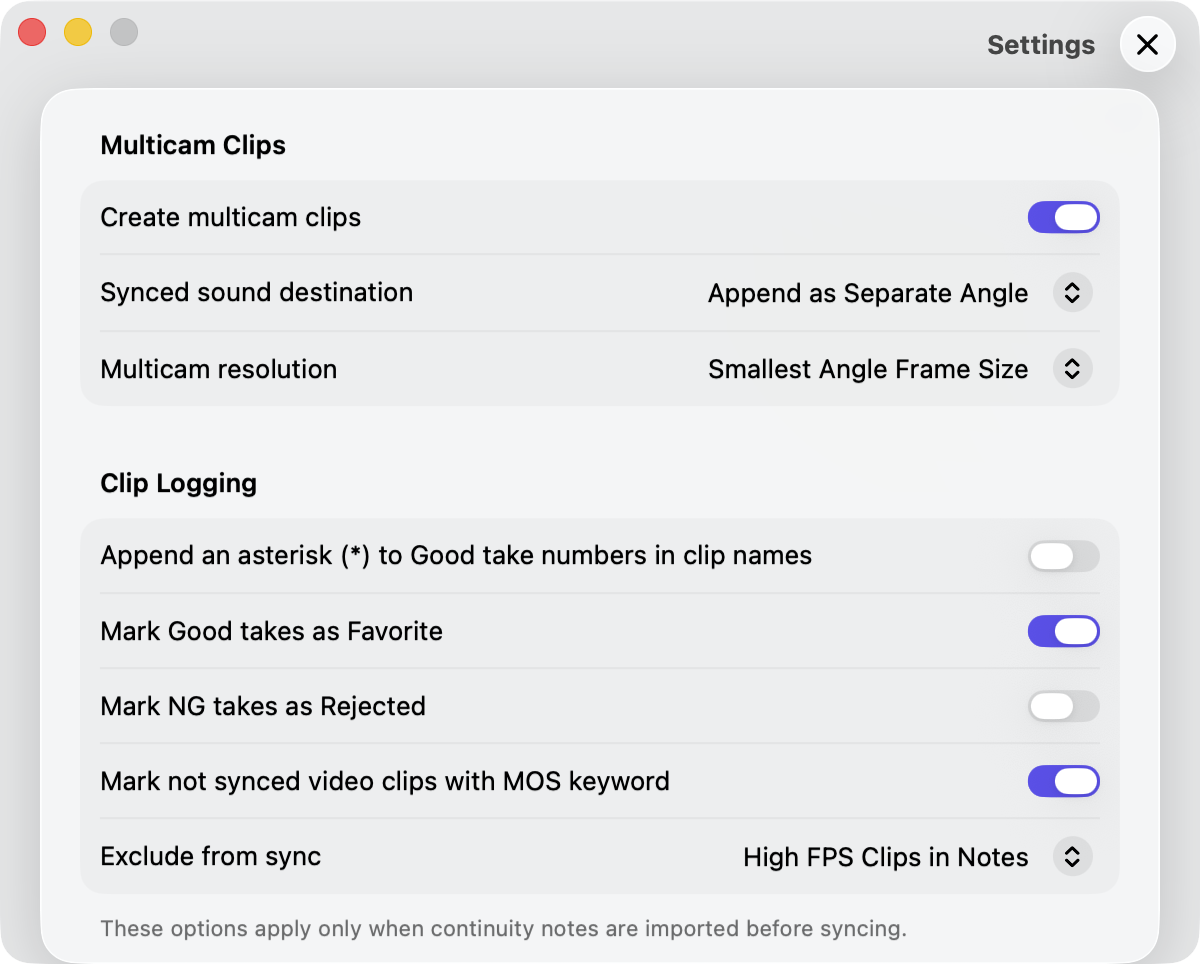
Multicam Clips
Controls how overlapping takes from several cameras are grouped into multicam clips.
- Create multicam clips
- Groups overlapping multi-camera takes into multicam clips. When off, each take becomes a standalone synchronized clip even when several cameras cover it. The two pickers below apply only when this is on.
- Synced sound destination
- Where the synced audio lives inside each multicam clip:
- Synced Clip in First Angle — keeps the first video angle as a synchronized clip that contains the audio.
- Synced Clips in All Angles — makes every angle a synchronized clip with audio, so any angle stays usable on its own if you later break the multicam clip apart.
- Append as Separate Angle — adds a dedicated audio-only angle.
- Multicam resolution
- When angles have different frame sizes, this sets which one the multicam clip inherits: Smallest Angle Frame Size matches the lowest-resolution angle, Largest Angle Frame Size matches the highest.
Clip Logging
These options apply only when you import a continuity report before syncing. With no report, they have no effect.
- Append asterisk (*) to good take numbers in clip name
- When clip renaming is enabled, adds an asterisk to the Take value of clips whose verdict is Good.
- Mark Good takes as Favorite
- Applies Final Cut Pro’s Favorite rating to clips whose continuity note marks the take as Good.
- Mark NG takes as Rejected
- Applies Final Cut Pro’s Rejected rating to clips whose continuity note marks the take as NG.
- Mark not synced video clips with MOS keyword
- Replaces the “Not Synced” keyword with “MOS” when continuity notes are imported — anything a continuity report doesn’t cover is, by definition, picture without sound.
- Exclude from sync
- Skips clips during sync based on continuity-notes data:
- None — sync everything.
- MOS Clips in Notes — skip clips marked MOS in the report’s Sound column.
- High FPS Clips in Notes (the default) — skip rushes with an FPS column value 28 or above.
Metadata
Synced clips carry the metadata of your original media. This section decides where that metadata comes from and whether keywords ride along.
- Metadata source
- Choose whether synced clips draw their Reel, Scene, and Take metadata from the Video Clips or the Audio Clips they were built from.
- Remove original keywords
- Strips the keywords carried by the source clips so the synced clips start clean.
Tip: Combine Remove original keywords with Convert Scene metadata to keywords (in Final Cut Pro Integration) to start from a clean slate and rebuild a tidy, scene-based keyword structure for editing in Final Cut Pro.
Final Cut Pro Integration
How the synced output behaves once it reaches Final Cut Pro.
- Convert Scene metadata to keywords
- Treats each clip’s Scene field as a keyword and assigns it to the synced clip — a quick way to break the synced media into scenes in Final Cut Pro. When clip logging is active, the keyword uses the scene value from your continuity notes.
- Disable audio components of source video clips
- Mutes the on-camera scratch audio on every synced clip so playback uses only the external recorder track. Turn it off to keep camera audio playing alongside the recorder. This mirrors Final Cut Pro’s own option of the same name in its Synchronize Clips dialog.
- Include source clips in synced event
- Adds a standalone copy of every source clip that became part of the synced output to the synced event, tagged with the “Processed Originals” keyword, so you can delete the source event after handoff without losing the originals.
- Media Sync Tool metadata view
- Use the Install Metadata View button to add the app’s metadata view to Final Cut Pro. Final Cut Pro must be relaunched afterward. If Final Cut Pro isn’t installed yet, the button stays inactive and its title says so until you launch Final Cut Pro at least once.
Important: Per-channel BWF/iXML mixer track names (such as “Boom” or “Lav”) are always written as audio subroles on synced clips — there is no setting to turn this on or off.