Share synced clips
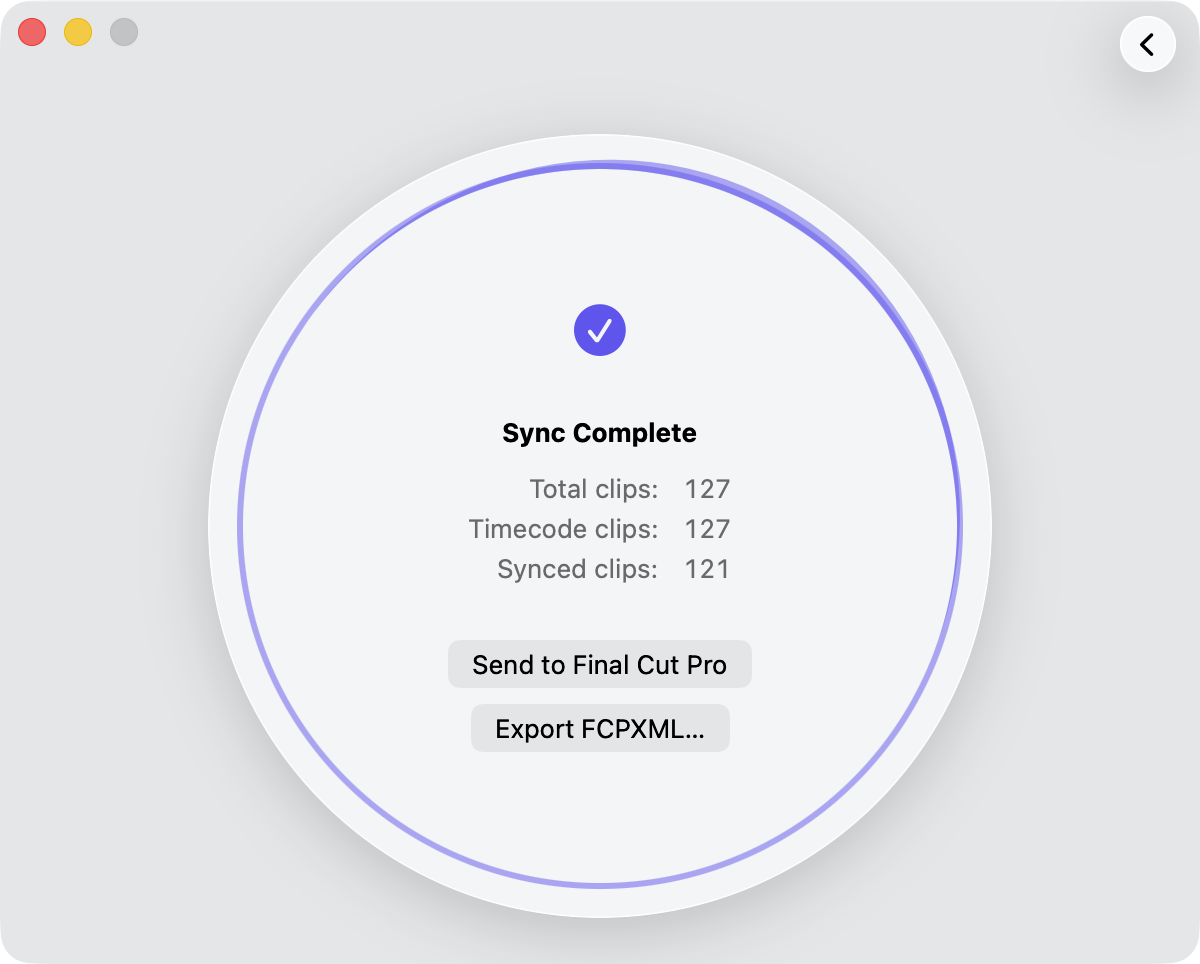
When the sync finishes, Media Sync Tool shows a summary of the results and gives you two ways to get them into Final Cut Pro: send them directly, or export an FCPXML file to import later.
Send to Final Cut Pro
Click Send to Final Cut Pro to hand the sync results straight to the app. If Final Cut Pro isn’t already running, Media Sync Tool launches it and starts importing the synced media.
Export FCPXML
If you’d rather deal with the synced media later, click Export FCPXML to save the results to an FCPXML file on disk. Choose a folder, and optionally a file name, and Media Sync Tool writes the file there.
You can import that FCPXML file into Final Cut Pro at any time. To learn more about FCPXML, see the Final Cut Pro User Guide.
Note: If saving the file fails—for example, the destination is read-only or out of space—Media Sync Tool shows an Export Failed message with the reason. Your sync results stay on screen, so you can pick another location and export again.
Tip: It’s tempting to assume the number of synced clips should match the number of camera clips, but they usually don’t. Some shots are captured with the camera alone and no external sound, so they never become synced clips.