When some clips don’t sync
A sync always finishes — but that doesn’t guarantee every clip ended up synced. If the result has fewer synced clips than you expected, one of a few common causes is usually behind it.
How to tell what didn’t sync
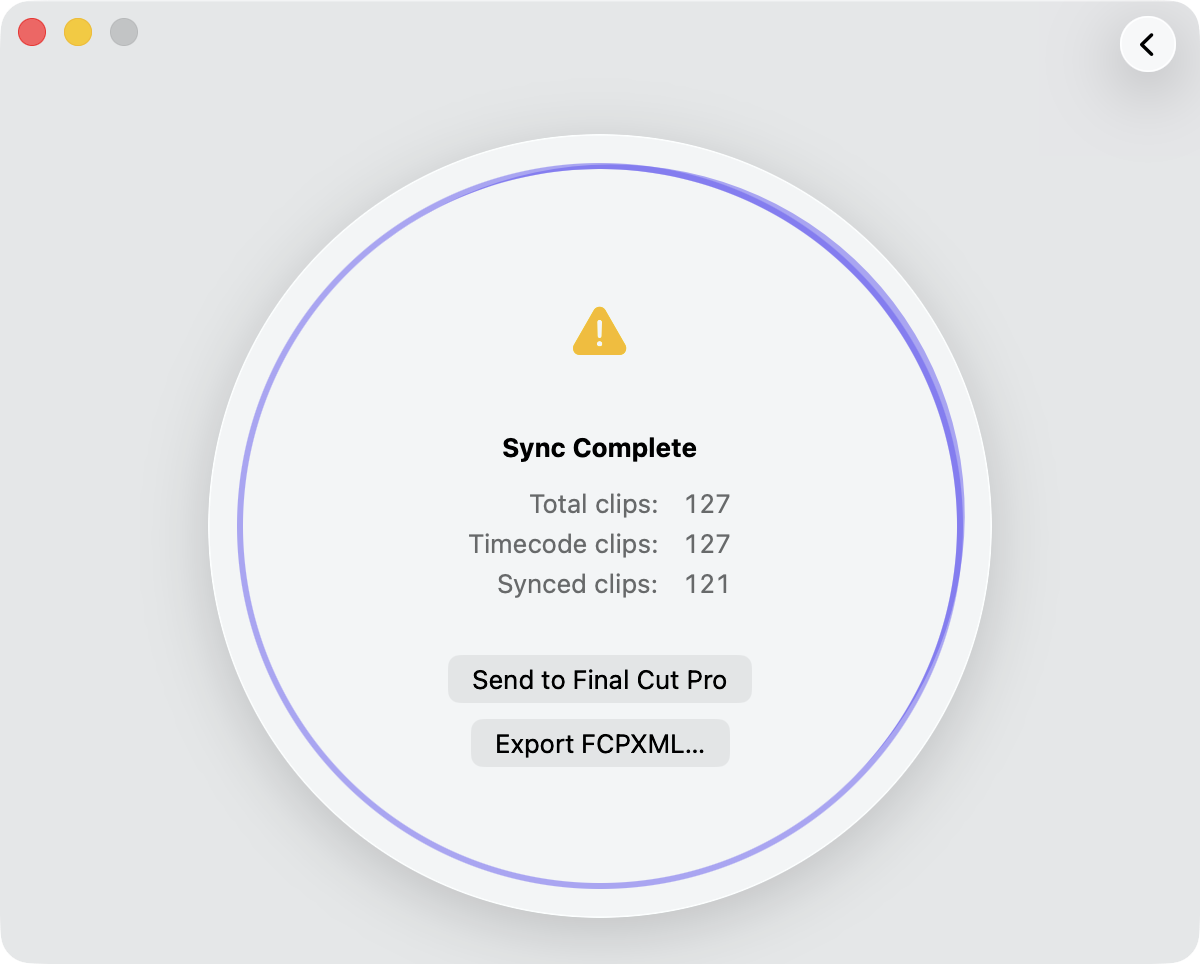
Nothing is silently dropped: every clip Media Sync Tool couldn’t sync is still carried into the synced event and tagged so you can find it. In Final Cut Pro, open the synced event and click the Not Synced or No Timecode keyword collections to see exactly which clips were left out. (For what the progress ring shows during a sync, see Progress indication.)
Clips without a timecode track
Media Sync Tool aligns video and audio by their recorded timecode. A clip that carries no timecode track has nothing to align against, so it lands in the No Timecode collection unsynced. This usually affects media that was exported, screen-recorded, or otherwise stripped of its original timecode. Replace it with the camera-original file — which retains its timecode — or exclude it from the sync if it isn’t needed.
A frame-rate mismatch
When a video clip and its audio overlap by timecode but were recorded at incompatible frame-rate families (for example 23.976 vs true 24), Media Sync Tool leaves them unsynced rather than resample—resampling would let the picture and sound drift apart over the take. The affected clips land in the Not Synced collection, and the finished sync shows a yellow warning (see Progress indication) you can click for the details. Re-record or re-export the media at a single, matching frame rate to sync it.
Picture and sound timecode that don’t match
Media Sync Tool pairs clips whose timecode ranges overlap. That works when the cameras and the sound recorder shared the same time-of-day timecode on set (jam sync). When they didn’t — each device’s clock running on its own — every clip still carries timecode, but the values don’t correspond: the same take might read 00:41 on the camera and 10:31 on the recorder. There is no overlap to find, so the picture lands in Not Synced (or MOS) and its sound in Not Synced, even though the clips clearly belong together.
To check your material, sort the rushes by timecode in Final Cut Pro (list view, Start column). If video and sound from the same takes sit hours apart — for example, video timecode starting near midnight while sound timecode starts mid-morning — the devices weren’t jam-synced.
This is a property of the recorded files, not a setting: no timecode-based tool can pair clips whose timecode values don’t correspond, and such material can only be synced manually. On future shoots, have the cameras jam-synced to the sound recorder to keep the sync automatic.
Clips logged but nothing synced
Sometimes a run can’t pair anything by timecode, so no synced or multicam clips are produced at all. Normally that ends in a Nothing to Sync error—but if you logged a continuity report whose rows matched some of your clips, Media Sync Tool doesn’t stop. It completes the run, logs the matched clips (applying their scene, shot, take, and verdict), and finishes with a Clips Logged, Not Synced warning. Your logging is delivered even though nothing could be synced.
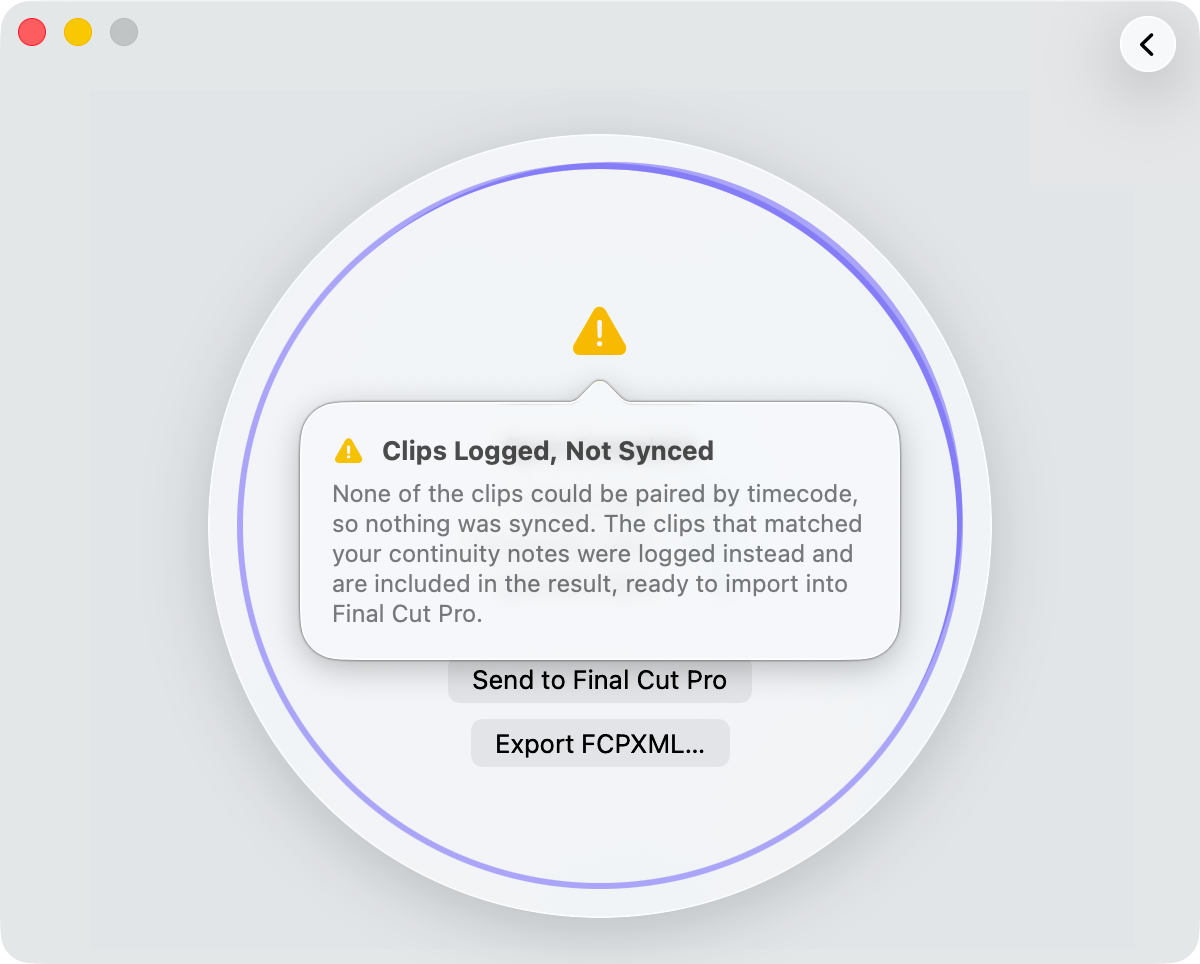
This usually means the syncing media carried no matching timecode—so there were no pairs to build—while your continuity report still lined up with the clip names. The FCPXML you export contains the logged clips, ready to import into Final Cut Pro. To sync them as well, give the media matching timecode and run again.
Tip: Compare the clip count in the synced event with what you expected. The clips tagged Not Synced or No Timecode are the ones to inspect first — Not Synced clips overlapped by timecode but found no matching pair (or hit a frame-rate mismatch); No Timecode clips were missing a timecode track to align against.